Getting started
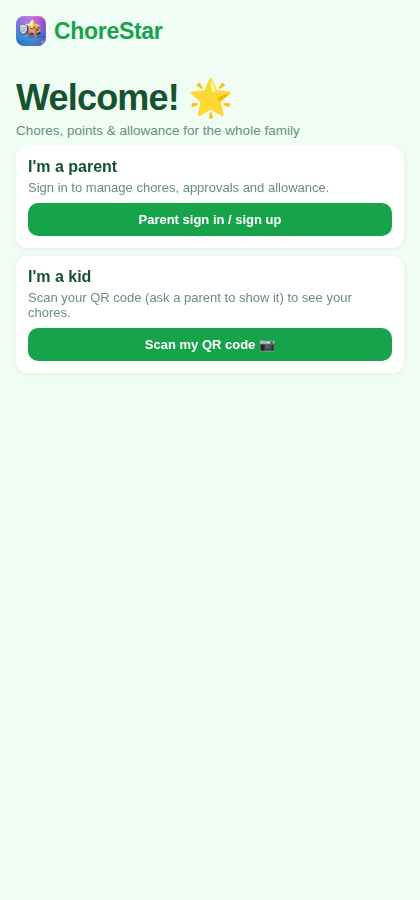
When you open ChoreStar you'll see a welcome screen with two doors: one for parents and one for kids. Parents tap Parent sign in / sign up to manage the family. Kids use Scan my QR code (more on that below).
1 Choose how you'll sign in
Tap Parent sign in / sign up to create or open your account. The big page heading and clean cards work the same on a phone or in a web browser.
Create your parent account
Signing up takes two quick steps: enter your email to receive a 6-digit verification code, then confirm the code along with your name and a password.
2 Enter your email
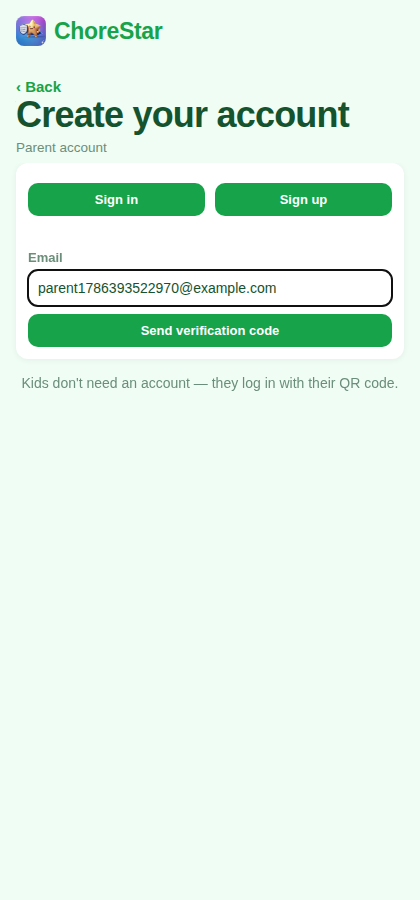
Switch to the Sign up tab, type your email, and tap Send verification code. We'll email you a 6-digit code to confirm it's really you.
3 Confirm the code & set a password
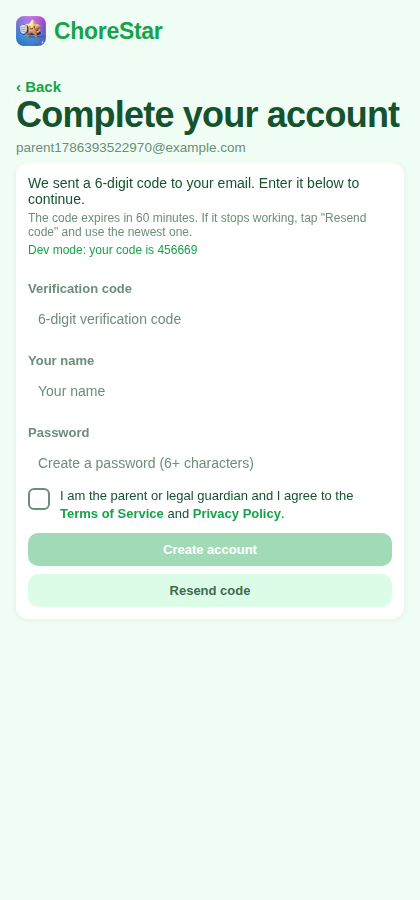
Enter the 6-digit code from your inbox, add your name, and pick a password (6+ characters). Tap Create account and you're in.
Set up your family
4 Name your family & add a first kid
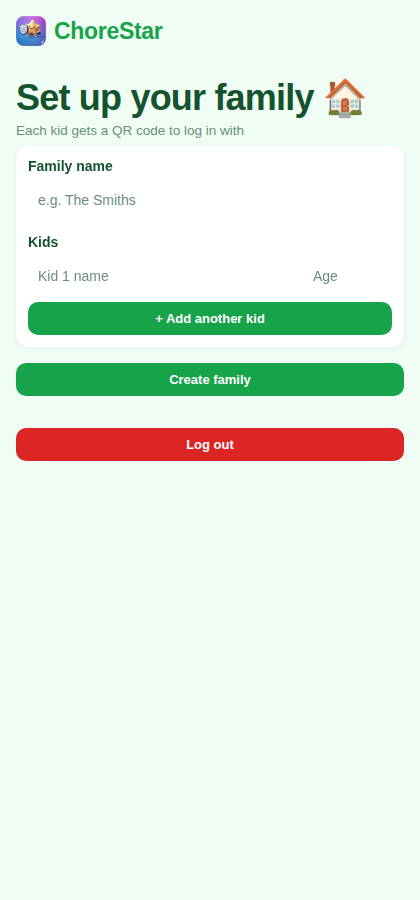
Give your family a name (e.g. "The Garcias") and add your first child's name. You can always add more kids later from the Kids section.
The parent dashboard
5 Your home base
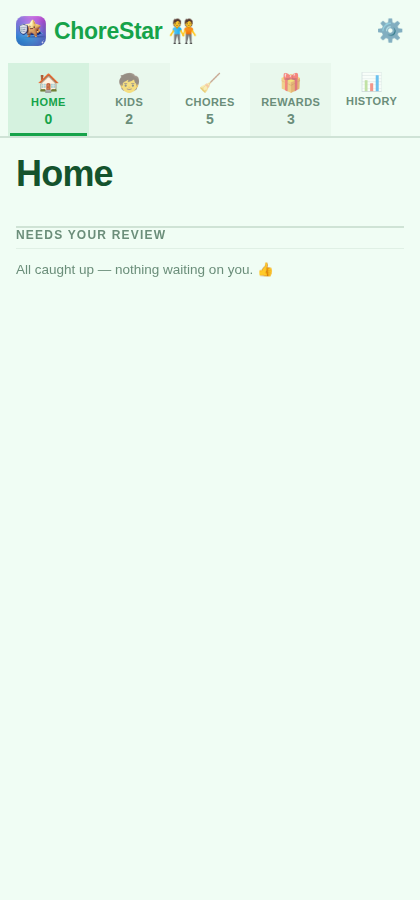
The Home screen is mission control. The tab ribbon across the top switches between Home, Kids, Chores, Rewards and History, and each tab carries a count so you can see your family at a glance. Anything waiting on you — completed chores, chore suggestions, reward requests — lands in a single Needs your review queue on Home, newest first, and the Home tab shows a badge while it isn't empty.
Add chores
Open the Chores tab and you land straight on your current chores — no extra menu to tap through.
6 Your current chores
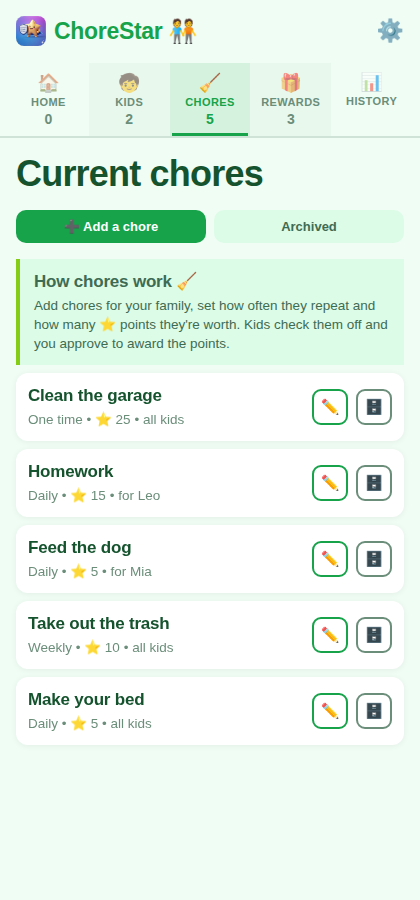
The Chores screen lists everything that's already set up. Use the icon-only buttons to edit (✏️) or archive (🗄️) any chore — archived chores are hidden from the active list but kept in history (tap Archived to view and restore them with ♻️). Tap ➕ Add a chore at the top to create a new one.
7 Fill in the chore
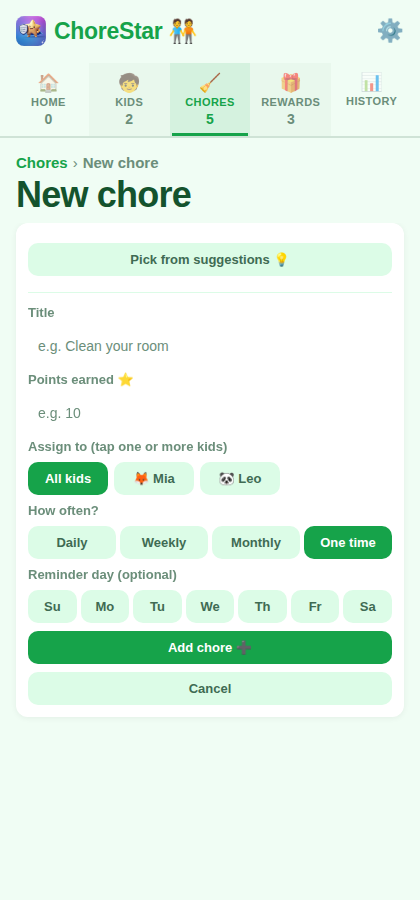
Give it a title, set how many points it's worth, choose a frequency (Daily / Weekly), and optionally assign it to a specific kid with a reminder day. Need ideas? Tap Pick from suggestions 💡. Then tap Add chore ➕.
Set up rewards
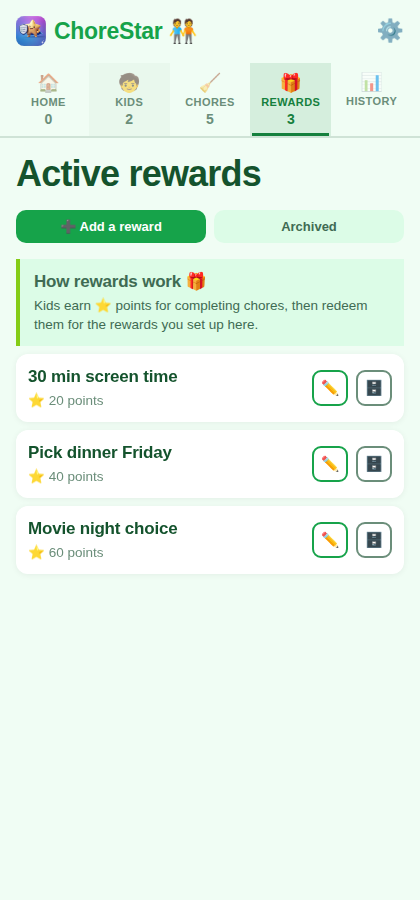
Open the Rewards tab to land on your active reward shop. Rewards are what kids "buy" with the points they earn.
8 Your reward shop
Active rewards appear in the shop kids can browse. Edit (✏️) or archive (🗄️) any reward; archived ones are hidden from kids but kept in history (tap Archived to view and restore them with ♻️).
9 Add a reward
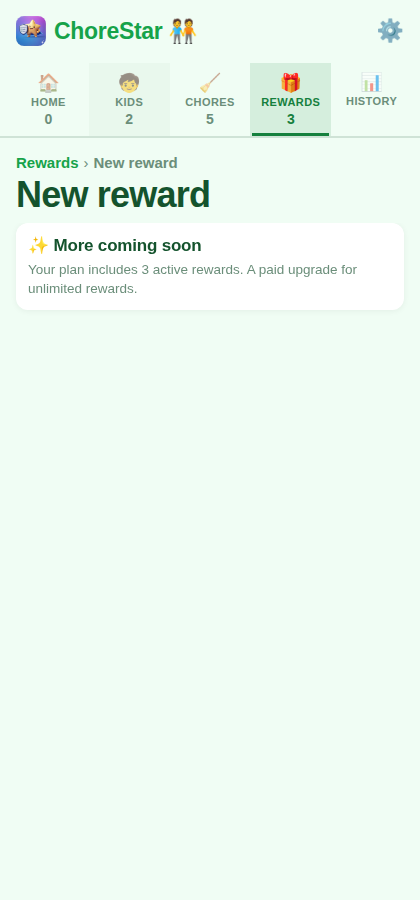
Tap ➕ Add a reward at the top, name it (e.g. "30 min screen time"), and set its point cost. Tap Add reward 🎁.
Kids & QR login codes
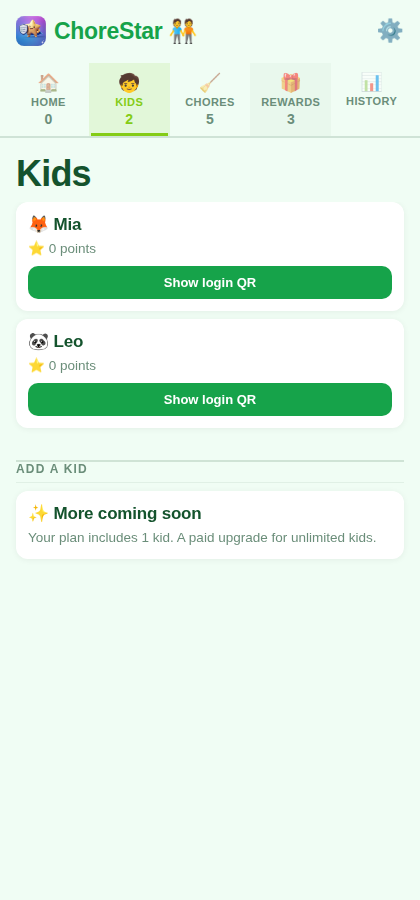
Open the Kids tab to see each child's point balance and their personal QR login code.
11 See your kids
Each kid card shows their current point balance. This is also where you add more kids.
12 Show the login QR
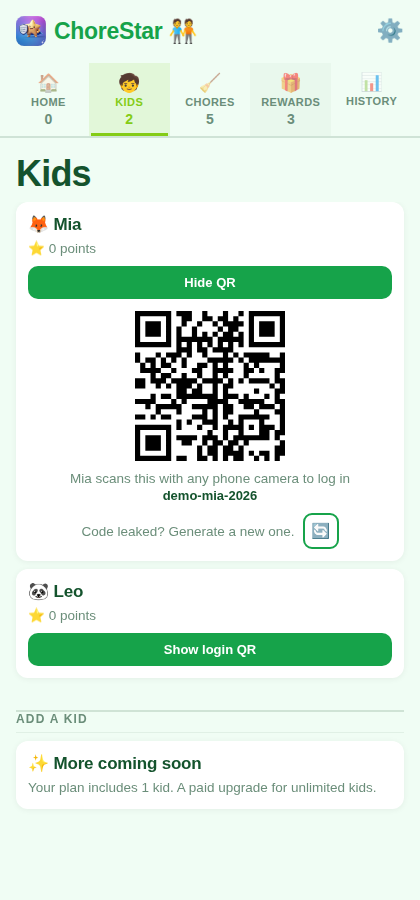
Tap Show login QR. Your child scans this code with any phone camera to open the app and log in automatically — no password for them to remember. If a code is ever leaked, tap Generate a new QR.
Settings & themes
11 Make it yours
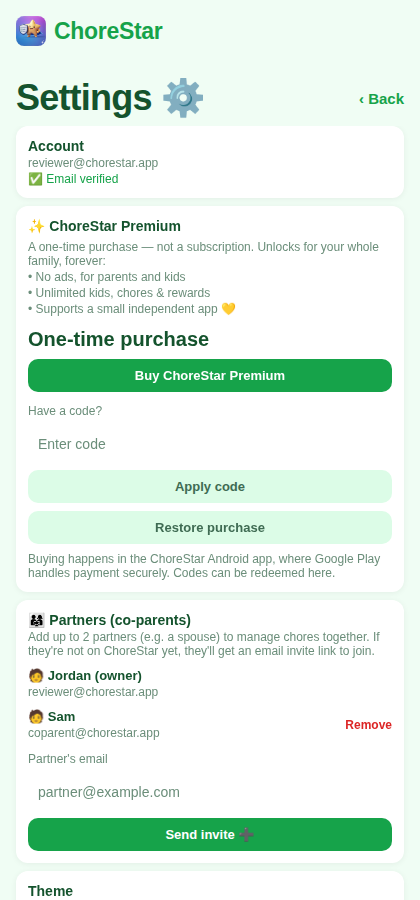
Tap the gear ⚙️ in the top-right. Pick a color theme (Green is the default — or Orange, Berry, Ocean, or a custom color of your own), choose your family's points icon (⭐ by default), change your password, or log out.
Doing your chores
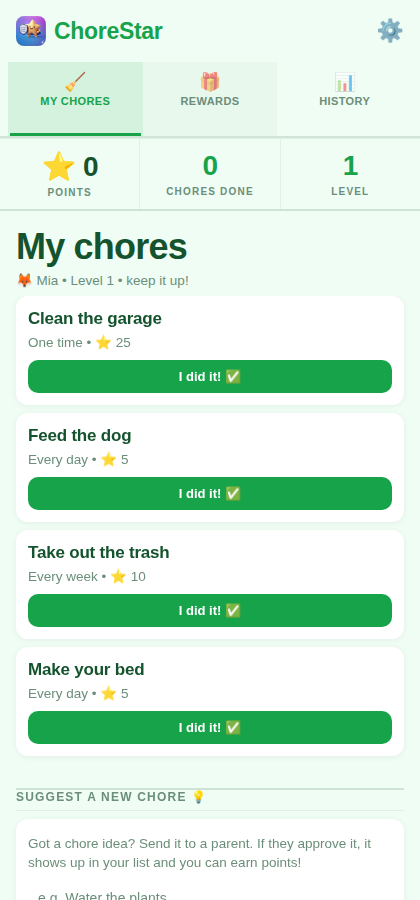
13 See your chores
Your My chores screen lists everything you can do to earn points, plus your current point total at the top.
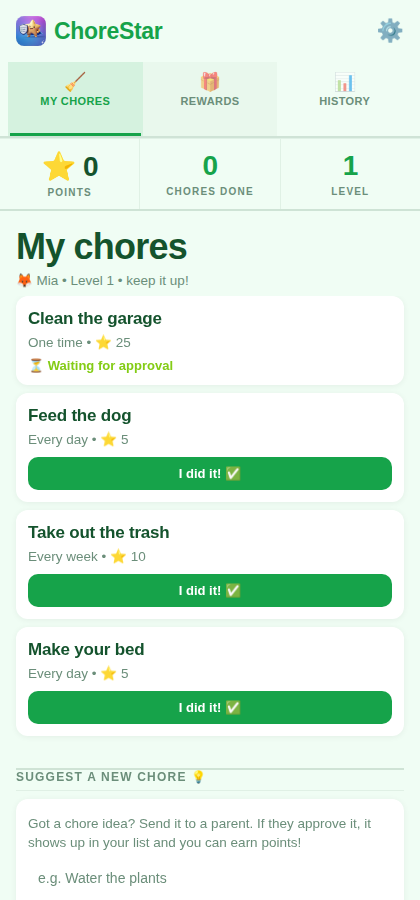
14 Mark it done
Finished a chore? Tap I did it! ✅. It shows ⏳ Waiting for approval until a parent confirms, then your points are added automatically.
Suggesting a chore
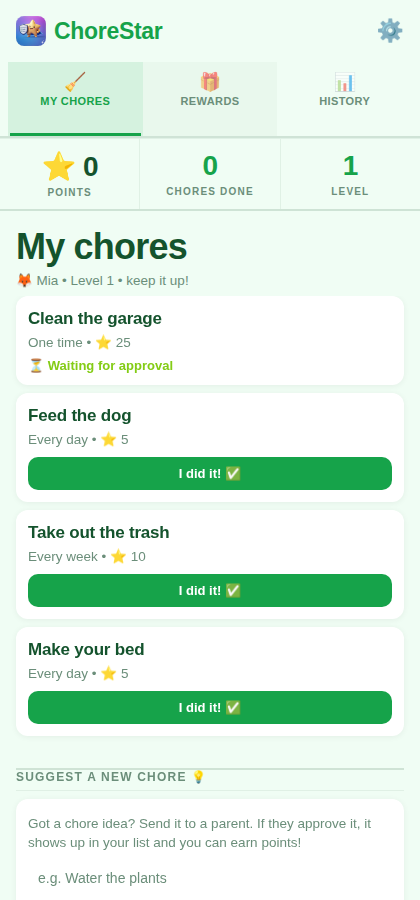
15 Pitch a new chore
Got an idea? Type it in the suggestion box and tap Send to parent 📨. Your parent decides the points and approves it — then it becomes a real chore you can earn from.
Redeeming rewards
16 Spend your points
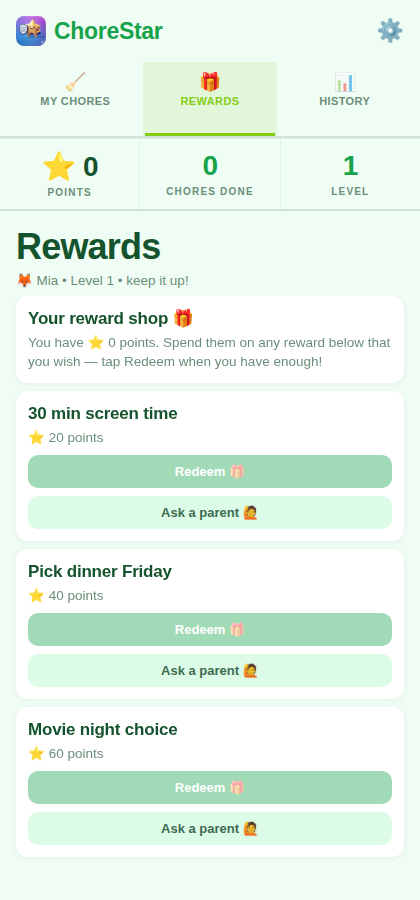
Open the Rewards tab to see the reward shop. When you have enough points, tap Redeem 🎁 — your points go down and your parent gets the heads-up to deliver the reward.